
You own a Mac. Your job needs Windows. This is a common problem for finance teams, CAD users, and anyone stuck with an old Windows-only tool.
The fix is Windows RDP for Mac.
In this guide, you’ll learn:
- What RDP is and why it works well on Mac
- How to set it up step by step
- How to fix the “not full screen” bug
- Which Mac RDP client to pick
- How to keep your connection secure
What Is Windows RDP and Why Use It on a Mac?
Microsoft built RDP to send your Windows desktop, keyboard, and mouse input over the internet. You’re not installing an operating system, you’re just viewing one that runs elsewhere.
Reasons this matters for Mac owners:
- No dual boot. Skip Boot Camp or a virtual machine that eats your storage and battery.
- Light on resources. RDP only streams screen data, so it runs fine even on older Macs.
- Works anywhere. Any internet connection gets you into your Windows desktop — coffee shop, home, or office.
- Useful for mixed teams. Companies with both Mac and Windows staff can give everyone the same software access without buying matching hardware.
What You Need Before Setting Up Windows RDP on Mac
Three things, and nothing else:
- A window RDP client for Mac – the app that displays your remote session.
- Connection details – IP address (or hostname), username, and password. If you buy RDP from a provider, these arrive by email after purchase.
- A stable internet connection – RDP doesn’t need much bandwidth, but a weak connection causes lag.
No extra hardware. No Windows license required on the Mac itself.
Step by Step: Setting Up Windows RDP on Mac
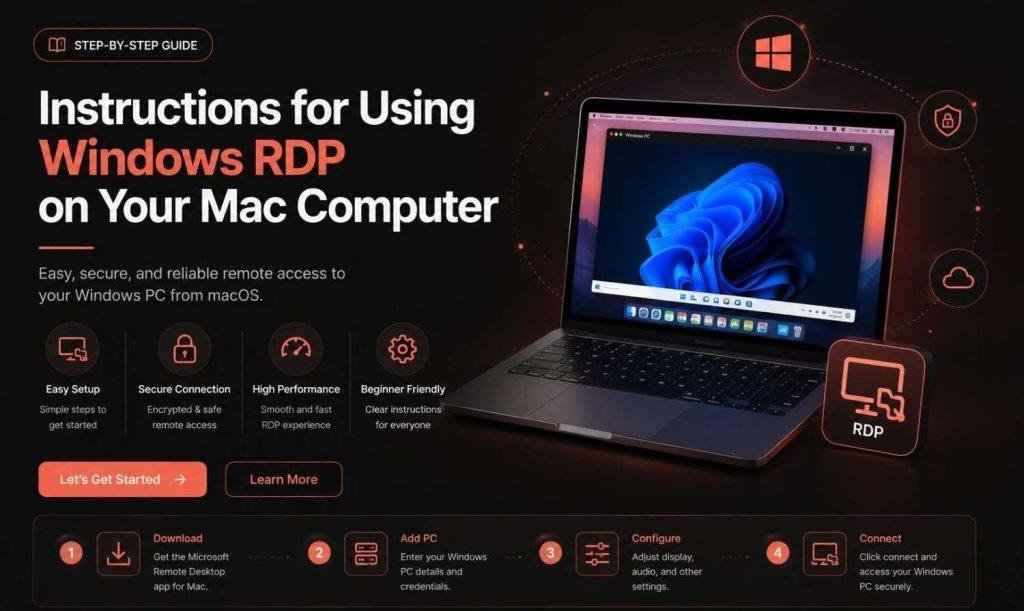
Step 1: Install an RDP Client
Since there is no pre-installed RDP software on a Mac operating system, one needs to install the RDP client. One of the most popular applications for RDP is Microsoft Remote Desktop that is free.
- Visit Mac App Store
- Search “Microsoft Remote Desktop”
- Click Get, then install
It’s the most widely used Windows RDP app for Mac because Microsoft builds and maintains it directly.
Step 2: Add a New Connection
- Open Microsoft Remote Desktop
- Click the + button, then Add PC
- Enter the IP address or hostname of the Windows machine in “PC name”
Step 3: Enter Your Login Details
- Click Add User Account
- Enter the username and password given to you by IT or your RDP provider
- Save the credentials so you don’t retype them each session
Step 4: Set Display and Performance Preferences
Before making the connection, open the options for your connection (gear icon), and ensure:
- Display resolution – match your Mac’s screen for a sharp image
- Colour quality – higher settings look better but use more bandwidth
- Sound – choose whether audio plays locally or stays on the remote PC
Step 5: Connect
- Double click the saved connection
- Accept the certificate warning if it appears (normal for most private RDP servers)
- Your Windows desktop loads inside the app window
That’s the full setup. From here, you use Windows on your Mac like it’s your own machine.
Fixing “Windows RDP for Mac Not Full Screen”
This is one of the most searched problems with Mac RDP clients. Here’s how to fix it.
Option 1: Use the Window Menu
During your session, click Window in the top menu bar, then Enter Full Screen. Or use the shortcut Ctrl + Cmd + F.
Option 2: Check Your Display Resolution Setting
Before connecting, open your PC’s connection settings and set “Resolution” to “Full Screen” or your Mac’s native resolution, not a lower preset.
Option 3: Leave Retina Scaling Alone
On Retina Macs, manually changing scaling settings often causes blurry or mis-sized images. Leave the default scaling in place.
Option 4: Upgrade Your Application
The previous versions of the Microsoft Remote Desktop application had problems with multiple monitors and full screen.
If none of these fix it, the problem may sit on the server side some RDP servers cap the resolution they send. Contact your RDP provider’s support team to check server-side display limits.
Comparing Windows RDP Clients for Mac
| RDP Client | Cost | Best For | Full-Screen Support |
| Microsoft Remote Desktop | Free | Most users, general access | Good, occasional bugs on older versions |
| Jump Desktop | Paid | Power users needing multiple protocols | Excellent |
| CoRD (legacy) | Free | Older macOS versions only | Limited, no longer maintained |
| Royal TSX | Freemium | IT admins managing many connections | Excellent |
Microsoft Remote Desktop covers most needs since it’s free and actively supported. IT teams juggling many connections often prefer Royal TSX for its organization tools.
Benefits of Running Windows RDP on a Mac
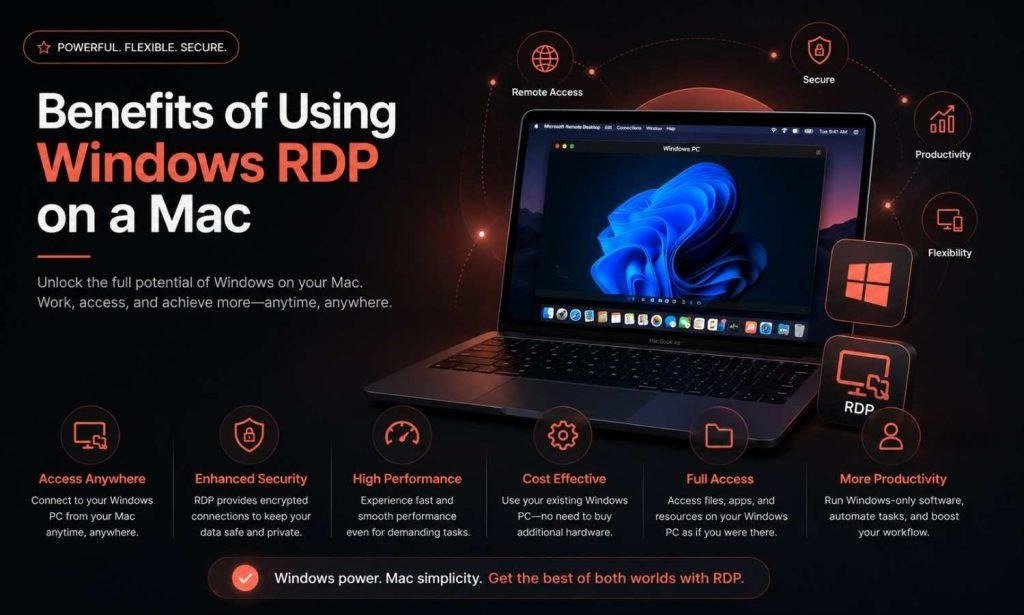
- Run Windows only software without owning a Windows PC
- Cut hardware costs one Mac can reach multiple Windows environments
- Keep data centralized on the remote server instead of scattered across devices, which helps with compliance and backups
- Work from anywhere with an internet connection
- Get better performance on demanding tasks, since an older Mac isn’t the bottleneck if the remote server is powerful
Security Tips for RDP on Mac
RDP is safe if used properly. Remember these key things:
- Use a good and unique password for the remote Windows user
- Turn on Network Level Authentication (NLA) if your provider supports it — it verifies credentials before the connection opens, cutting attack risk
- Never use public Wi-Fi connection without a secure VPN
- Keep your RDP Client always updated to resolve all exploits
- When using third-party RDP services, it is advisable to select the one that offers dedicated IP addresses and firewall.
Key Points
- Windows RDP for Mac allows you to run a complete Windows desktop without dual boot or virtual machine
- Microsoft Remote Desktop is the most reliable free windows RDP software for Mac
- The “not full screen” issue is almost always a display settings fix
- Security basics – strong passwords, NLA, updated software – matter more than most people assume
- The selection of your RDP vendor will affect both performance and full screen functionality.
FAQs
Can I use the Remote Desktop service without any software installation on my Mac? No way! There is no support for RDP in the macOS by default. Some software needs to be installed, and Microsoft Remote Desktop is one such software that can be installed for free from the App Store.
Is Windows RDP for Mac free to use? The client app is free Microsoft Remote Desktop costs nothing to download. You’ll still need server access (your own Windows PC, or a rented RDP server) with a hostname and login.
Why won’t my screen stay full size? Usually a resolution setting or an outdated app. Client should adjust his resolution settings and get into full screen mode using the Window option.
Is there a possibility that I can make the files transfer from my Mac to Windows via the remote connection? Yes, since most RDP clients provide the option for file transfer using drag and drop and clipboard options.
Is RDP secure on Mac? Of course, as long as you keep it simple and straightforward; always use a VPN, strong passwords, and NLA when possible.
Can older Macs handle RDP smoothly? Yes. The only thing that RDP does is to transfer screen, keyboard, and mouse data without having the OS installed on the computer; hence, it is not surprising that even old Mac computers are able to handle this process.
What makes the Remote Desktop Protocol software different from the Virtual Private Network? The latter ensures secure networking but not remote access to the desktop. RDP lets you actually see and control a Windows machine. Many setups use both together.
Can several people use the same RDP server simultaneously? It depends on the configuration of that particular server and its license. There are servers where there is permission for just one person to log in. Other servers exist on which people can log in multiple times.
Conclusion
Windows RDP on a Mac can be easily achieved if one knows the procedure; simply download a reliable client such as Microsoft Remote Desktop, configure the details of your connection, and modify your display settings in case you cannot use full screen mode. In addition, combine this with basic security practices to gain access to Windows applications without purchasing a Windows computer.